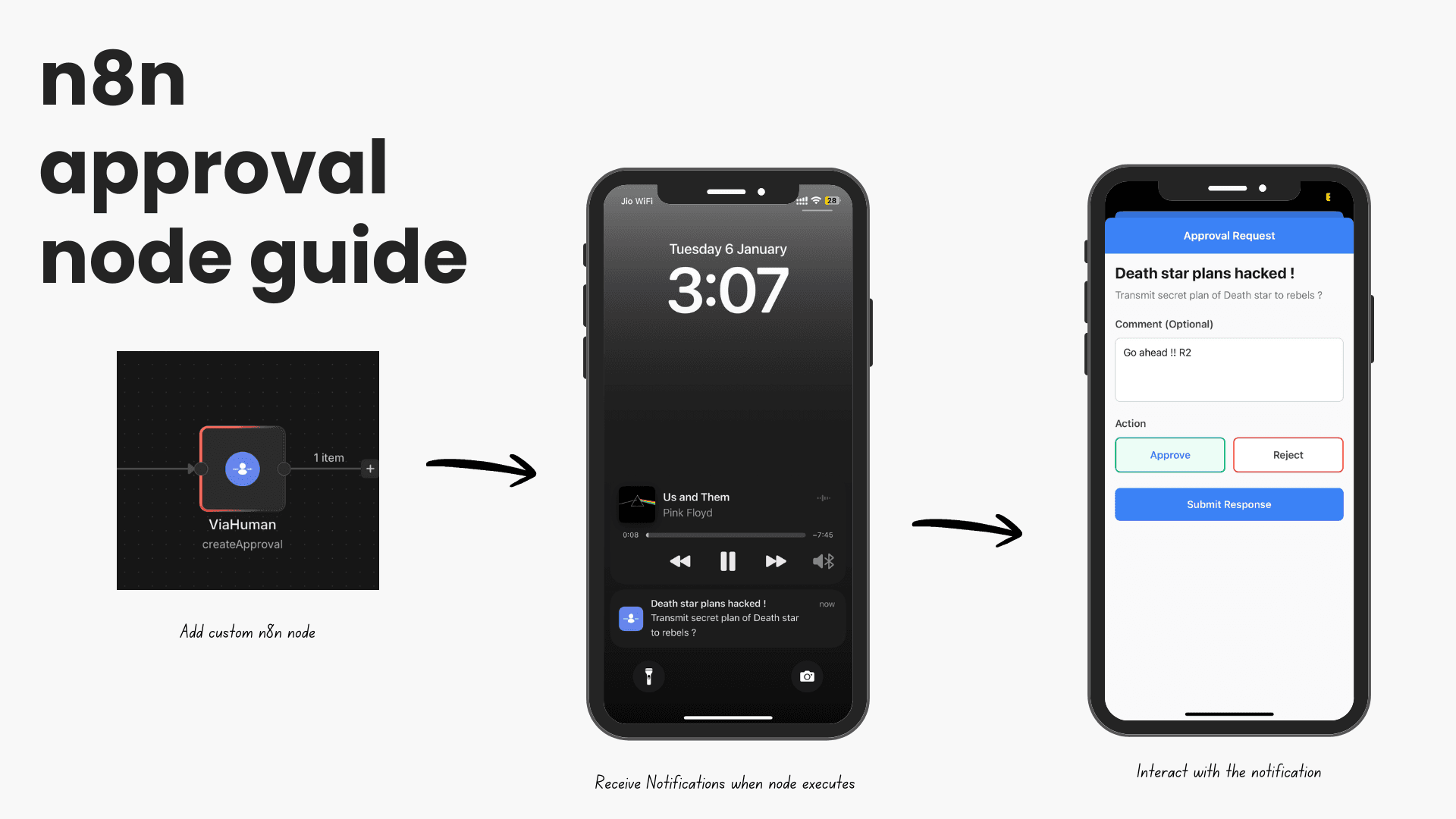
n8n Integration Guide
Learn how to use ViaHuman with n8n workflows to add human-in-the-loop approvals.
Prerequisites
- An n8n instance (self-hosted or cloud)
- A ViaHuman account with an API key
- Basic knowledge of n8n workflows
Installation
Option 1: Install via n8n UI (Recommended)
- Open your n8n instance
- Go to Settings → Community Nodes
- Click Install
- Enter:
n8n-nodes-viahuman - Click Install
- Restart n8n
Option 2: Manual Installation
cd ~/.n8n/custom
npm install n8n-nodes-viahuman
Then restart your n8n instance.
Setting Up Credentials
- In your n8n workflow, add a ViaHuman node
- Click on Credentials → Create New
- Fill in the following:
- API Key: Your ViaHuman API key (starts with
vh_live_) - API URL:
https://api.viahuman.xyz(or your custom domain)
- API Key: Your ViaHuman API key (starts with
- Click Save
Operations
The ViaHuman n8n node supports three operations:
1. Create Approval
Creates a new approval request and optionally waits for the response.
Required Parameters:
- Title: Title of the approval request
- Description: Detailed description (optional)
Optional Parameters:
- Actions: Comma-separated list of actions (default: "approve,reject")
- Input Type: Type of input requested (none, text, number, select, image)
- Timeout: Seconds to wait before timing out (default: 3600)
- Wait for Response: Whether to block the workflow until user responds
- Polling Interval: Seconds between status checks (default: 5)
2. Get Approval
Fetches the current status of an approval request.
Required Parameters:
- Approval ID: The UUID of the approval request
3. Cancel Approval
Cancels a pending approval request.
Required Parameters:
- Approval ID: The UUID of the approval request
Example Workflows
AI Email Review Workflow
[Gmail Trigger: New Email]
    ↓
[OpenAI: Generate Response]
    ↓
[ViaHuman: Create Approval]
    - Title: "Review AI Email"
    - Input Type: Text
    - Default Value: {{ $json.ai_response }}
    - Wait for Response: true
    ↓
[IF Node: {{ $json.response_action }} === "approve"]
    ↓ (Yes)
[Gmail: Send Reply]
    - Body: {{ $json.response_input }}
    ↓ (No)
[Stop]
Budget Approval Workflow
[Webhook Trigger: Budget Request]
    ↓
[ViaHuman: Create Approval]
    - Title: "Approve Budget: {{ $json.project_name }}"
    - Input Type: Number
    - Min: 0
    - Max: 10000
    - Currency: USD
    - Default Value: {{ $json.requested_amount }}
    - Wait for Response: true
    ↓
[IF Node: {{ $json.response_action }} === "approve"]
    ↓ (Yes)
[Stripe: Create Payment]
    - Amount: {{ $json.response_input }}
    ↓ (No)
[Slack: Send Rejection Notice]
Deployment Gate Workflow
[GitHub Trigger: New Release]
    ↓
[ViaHuman: Create Approval]
    - Title: "Deploy {{ $json.release_name }}?"
    - Input Type: Select
    - Options: [
        {"value": "staging", "label": "Deploy to Staging"},
        {"value": "production", "label": "Deploy to Production"},
        {"value": "cancel", "label": "Cancel Deployment"}
      ]
    - Wait for Response: true
    ↓
[Switch Node: {{ $json.response_input }}]
    ↓ (staging)
[Deploy to Staging]
    ↓ (production)
[Deploy to Production]
    ↓ (cancel)
[Stop]
Input Types
None
Simple approve/reject with no additional input.
{
  "input_type": "none"
}
Text
Allow user to input or edit text.
{
  "input_type": "text",
  "input_config": {
    "placeholder": "Enter your text...",
    "multiline": true,
    "max_length": 500,
    "default_value": "{{ $json.initial_text }}",
    "required": true
  }
}
Number
Allow user to input a number (e.g., budget amount).
{
  "input_type": "number",
  "input_config": {
    "label": "Amount",
    "min": 0,
    "max": 10000,
    "step": 100,
    "currency": "USD",
    "default_value": 1000,
    "required": true
  }
}
Select
Allow user to choose from predefined options.
{
  "input_type": "select",
  "input_config": {
    "label": "Choose environment",
    "options": [
      {"value": "dev", "label": "Development", "description": "Dev environment"},
      {"value": "staging", "label": "Staging", "description": "Staging environment"},
      {"value": "prod", "label": "Production", "description": "Live production"}
    ],
    "required": true
  }
}
Image
Allow user to upload an image.
{
  "input_type": "image",
  "input_config": {
    "required": true
  }
}
Using Response Data
After an approval is completed, the ViaHuman node outputs:
{
  "id": "approval-uuid",
  "status": "approved",
  "response_action": "approve",
  "response_input": "User's input value",
  "response_comment": "Optional comment",
  "responded_at": "2024-12-15T10:30:00Z"
}
Access these values in subsequent nodes:
{{ $json.response_action }}- Which action was taken{{ $json.response_input }}- User's input value{{ $json.response_comment }}- User's optional comment{{ $json.status }}- Final status (approved, rejected, timeout, cancelled)
Troubleshooting
Node doesn't appear in n8n
- Ensure the package is installed:
npm list n8n-nodes-viahuman - Restart your n8n instance completely
- Check n8n logs for errors:
N8N_LOG_LEVEL=debug n8n start
"Invalid API key" error
- Verify your API key starts with
vh_live_ - Check the API URL is correct:
https://api.viahuman.xyz - Ensure the key is active in your dashboard
Workflow hangs on ViaHuman node
- Check "Wait for Response" is enabled
- Verify your mobile app is logged in
- Check the timeout value (default: 3600 seconds = 1 hour)
- Look at the approval in your mobile app or dashboard
Not receiving push notifications
- Ensure you're logged into the mobile app
- Check notification permissions are enabled
- Verify your push token is saved (check in app settings)
- Try logging out and back in to refresh the push token
Best Practices
- Set reasonable timeouts: Don't make workflows wait indefinitely
- Handle rejections: Always have a branch for rejected approvals
- Add context: Use description field to provide details for decision-making
- Test with staging keys: Use test keys (coming soon) for development
- Monitor usage: Keep an eye on your API key usage in the dashboard
Need Help?
- Join our Discord for community support
- Check out example workflows
- Email: support@viahuman.xyz